Configuring Traffic4SEO App
Introduction
Traffic4SEO App has two types of configurations:
- Instance Configuration: Controls how an instance runs workflows (tab count, RAM limit, etc.).
- App Settings: Controls the overall behavior of the application (browser selection, auto-start, etc.).
{info} Note: Instance Configuration is rendered from the web and is saved automatically upon change. App Settings require clicking the "Save Changes" button to save.
Instance Configuration
Accessing Instance Configuration
In the App:
- Open Traffic4SEO App.
- Log in to your account.
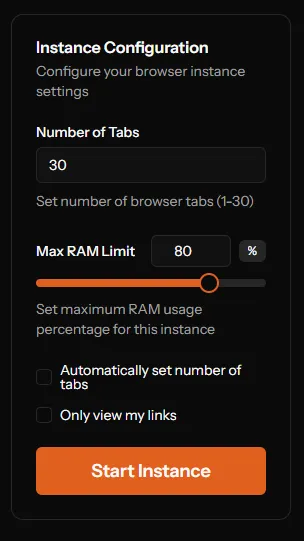
- The "Instance Configuration" panel is displayed within the app (rendered from the web).
Configuration Options
1. Tab Count
What it is: The maximum number of browser tabs that an instance can open simultaneously when running workflows.
Configuration:
- Min: 1 tab
- Max: 30 tabs
- Default: 30 tabs
Input: Number input (1-30)
When to Increase/Decrease:
Increase Tab Count (20-30 tabs):
- Powerful machine (RAM >= 16GB, CPU i5/i7)
- Want to run many workflows at the same time
- Fast internet connection (>= 20 Mbps)
Decrease Tab Count (5-10 tabs):
- Weak machine (RAM < 8GB)
- Slow internet connection
- App runs slowly or lags
{warning} Performance: Each tab consumes ~100-200MB of RAM. If you set the tab count to 30, the app can use up to 6GB of RAM at full load.
Example:
RAM 4GB → Tab count: 5-10
RAM 8GB → Tab count: 10-20
RAM 16GB+ → Tab count: 20-30
2. Max RAM Limit
What it is: The maximum percentage of total system RAM that an instance is allowed to use.
Configuration:
- Min: 10%
- Max: 100%
- Default: 80%
- Step: 5%
Controls:
- Slider (10% - 100%)
- Number input (displayed on the right)
How it Works:
- The app automatically monitors the RAM usage of the entire system (not just the app's RAM).
- If the system RAM exceeds the set limit, the app will:
- Stop distributing new workflows (won't receive more workflows).
- Wait for current workflows to complete.
- Release memory.
- Resume distributing workflows once system RAM falls below the limit.
{warning} Important Note: The app measures the RAM of the entire system, not just the application itself. When system RAM reaches the set level, the app stops receiving new workflows to protect the system from overloading.
3. Auto Set Tabs
What it is: The app automatically adjusts the number of tabs based on available RAM.
Type: Checkbox
When ON (checked):
- The app automatically calculates the optimal tab count based on:
- Total available RAM
- Current RAM usage
- Max RAM limit setting
- Tab count is adjusted dynamically during operation.
When OFF (unchecked):
- Uses the fixed tab count as set.
- Does not automatically adjust.
Recommendation:
- ✅ ON if the computer's RAM fluctuates (due to running other apps).
- ❌ OFF if you want to control the exact number of tabs.
4. Only My Links
What it is: Receive and run only workflows that you created yourself.
Type: Checkbox (wrapped in PlanUpgradeWrapper)
Plan Requirement: Pro Plan only
{warning} Pro Feature: Available only for users with a Pro Plan. Free/Beta users will see an upgrade prompt.
Use Case:
- You create workflows for testing.
- Want to run your own workflows instead of running them for others.
- Quality control (only run workflows you trust).
When ON:
- The instance ONLY receives workflows created by you.
- Ignores all workflows from other users.
- Does not earn tokens from others' workflows.
When OFF:
- The instance receives workflows from all users.
- Earns tokens normally.
Start/Stop Instance
Button: Displayed at the end of the panel.
States:
-
Stopped (default):
- Button text: "Start Instance"
- Button color: Blue (primary)
- Click → Start instance
-
Running:
- Button text: "Stop Instance"
- Button color: Red (destructive)
- Click → Stop instance
Disabled State:
- All settings are disabled while the instance is running.
- You must stop the instance before you can change the configuration.
{info} Live Update: When the configuration is changed (and the instance is stopped), the configuration is saved automatically. No need to click a Save button.
App Settings
Accessing App Settings
In the App:
- Click the "Settings" icon (⚙️ icon).
- Or: Menu bar → File → Settings.
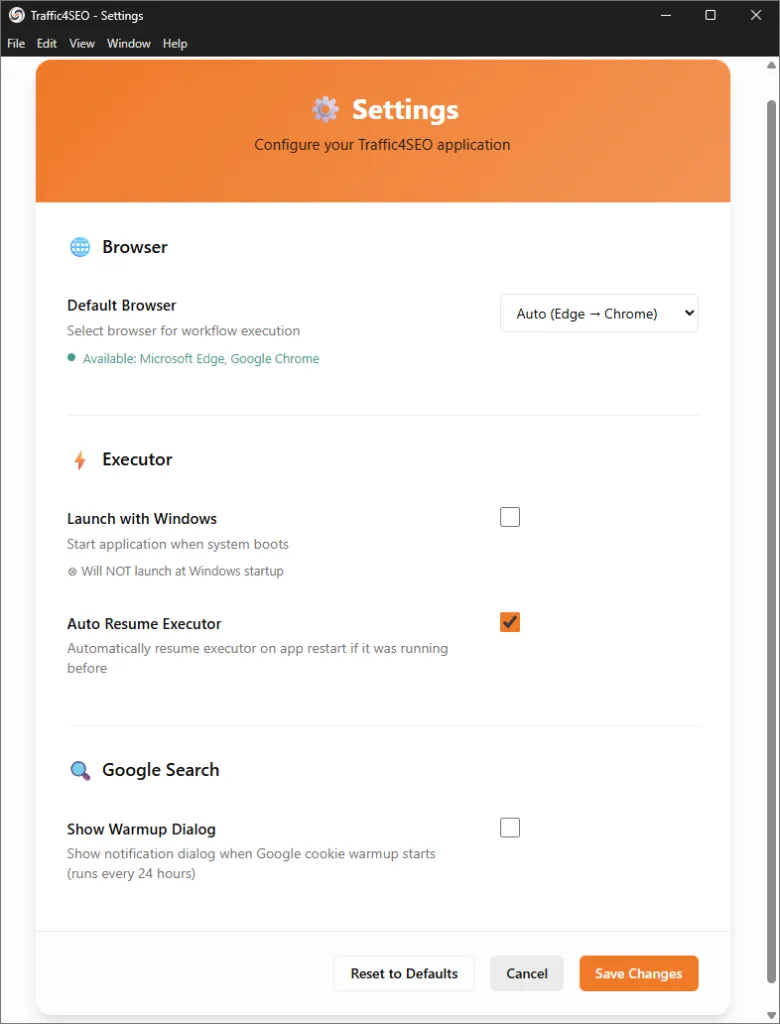
- The Settings window opens.
Browser Settings
Default Browser
What it is: Choose the browser to run workflows.
Options:
- Auto (Chrome → Edge): Automatically select - prioritizes Chrome, fallbacks to Edge.
- Microsoft Edge: Only use Edge.
- Google Chrome: Only use Chrome.
Select: Dropdown menu
Browser Detection:
- The app automatically detects browsers installed on your machine.
- Browsers not installed will be displayed as: "(Not installed)".
- If no browser is detected → Uses the bundled Chromium.
Status Display:
- ✅ Available:
Available: Microsoft Edge, Google Chrome - ⚠️ Not found:
No browsers detected (will use bundled Chromium)
{info} Bundled Chromium: The app comes with a built-in Chromium browser. If Edge/Chrome is not available, the app automatically uses this Chromium.
Recommendation:
- Auto: Best for most users.
- Edge: For stability (Edge is well-integrated with Windows).
- Chrome: If you are already accustomed to Chrome.
Executor Settings
Launch with Windows
What it is: Automatically starts the app when Windows boots.
Type: Checkbox
When ON:
- The app opens automatically when you start your computer.
- Executor can auto-resume if it was running previously.
- Ideal for 24/7 earning.
When OFF:
- Must open the app manually.
- App does not start on boot.
{warning} Note: This setting only applies after restarting the computer. It does not have an immediate effect.
Use Case:
- ✅ ON if running 24/7 to earn tokens.
- ❌ OFF if only running occasionally.
Auto Resume Executor
What it is: Automatically continues the executor if it was running before the app closed.
Type: Checkbox
Default: ✅ Enabled
When ON:
- If the app closes (crash, restart, close) while the executor is running.
- → The app automatically resumes the executor when reopened.
- Does not lose workflows in the queue.
When OFF:
- When reopening the app, the executor is in the stopped state.
- Must click Start manually.
Scenarios:
Scenario 1: App Crash
Before: Executor running, 5 workflows in progress
→ App crashes
→ Reopen app
After (Auto Resume ON): Executor auto-starts, continues from where it left off
After (Auto Resume OFF): Executor stopped, must be restarted manually
Scenario 2: Windows Update Restart
Before: Executor running 24/7
→ Windows auto-restart for update
→ App auto-launch (if "Launch with Windows" is ON)
After (Auto Resume ON): Executor resumes automatically
After (Auto Resume OFF): Executor stopped
{success} Recommendation: Always turn on Auto Resume to avoid losing uptime if the app restarts unexpectedly.
Google Search Settings
Show Warmup Dialog
What it is: Display a notification when the app runs Google cookie warmup.
Type: Checkbox
Default: ✅ Enabled
Background:
- The app automatically "warms up" Google cookies every 24 hours.
- Warmup = Visiting google.com to refresh cookies.
- Helps Google search workflows run more smoothly.
When ON:
- App displays a dialog when warmup starts:
ℹ️ Google Cookie Warmup

App is warming up Google cookies to improve
search workflow performance. This happens
automatically every 24 hours.

[OK]
When OFF:
- Warmup runs silently in the background.
- No notification is shown.
Recommendation:
- ✅ ON the first time to know what the app is doing.
- ❌ OFF once you are familiar with it (to avoid annoyance).
Saving Settings
Save Button
Click "Save Changes" to save all settings.
Success dialog:
✅ Settings Saved

Settings have been saved successfully.

The "Launch with Windows" setting will take
effect on the next system restart.

[OK]
Cancel Button
Click "Cancel" to close the window without saving.
Reset to Defaults
Click "Reset to Defaults" to return to default settings:
Confirmation dialog:
⚠️ Reset Settings

Are you sure you want to reset all settings
to default values?

[Yes] [No]
Default values:
Browser: Auto (Edge → Chrome)
Launch with Windows: ❌ Disabled
Auto Resume Executor: ✅ Enabled
Show Warmup Dialog: ✅ Enabled
Configuration Comparison
Instance Config vs App Settings
| Aspect | Instance Config | App Settings |
|---|---|---|
| Access | In-app (rendered from web) | Settings menu in-app |
| Controls | Tab count, RAM limit, workflows | Browser, startup, warmup |
| Scope | Runtime behavior of instance | Application behavior |
| Auto-save | ✅ Automatically saved | ❌ Needs "Save Changes" |
| Sync | Cloud (saved on server) | Local (saved on machine) |
Common Configuration Scenarios
Scenario 1: Maximize Earnings (24/7)
Instance Config:
Tab Count: 30
Max RAM Limit: 80% (Prioritize resources for the App)
Auto Set Tabs: ✅ ON
Only My Links: ❌ OFF
App Settings:
Browser: Auto
Launch with Windows: ✅ ON
Auto Resume Executor: ✅ ON
Show Warmup Dialog: ❌ OFFResult: App starts automatically on boot, runs 24/7, maximizes throughput.
Scenario 2: Casual Use (Free Time)
Instance Config:
Tab Count: 10
Max RAM Limit: 50-60% (Free up RAM for other applications)
Auto Set Tabs: ✅ ON
Only My Links: ❌ OFF
App Settings:
Browser: Auto
Launch with Windows: ❌ OFF
Auto Resume Executor: ✅ ON
Show Warmup Dialog: ✅ ONResult: Open the app manually when you want to run it, moderate performance.
Scenario 3: Testing Own Workflows (Pro Plan)
Instance Config:
Tab Count: 5
Max RAM Limit: 40-50% (Spare RAM for debugging/monitoring)
Auto Set Tabs: ❌ OFF
Only My Links: ✅ ON (Pro only)
App Settings:
Browser: Chrome (preferred for debugging)
Launch with Windows: ❌ OFF
Auto Resume Executor: ❌ OFF (manual control)
Show Warmup Dialog: ✅ ONResult: Full control, only test own workflows, manual start/stop.
Troubleshooting
Instance Config Doesn't Save
Problem: Changed the config but it didn't save.
Solution:
- Ensure the instance is stopped (config cannot be changed while running).
- Config auto-saves upon change (no Save button needed).
- Check the browser console for errors.
App Settings Reset After Restart
Problem: Settings reset to default every time the app opens.
Solution:
- You must click "Save Changes" before closing the window.
- Do not click "Cancel" or close the window directly.
- Check permissions: Does the app have write access to the config folder?
Launch with Windows Not Working
Problem: Turned on the setting but the app doesn't auto-start.
Solution:
- The setting only applies after restarting the computer (not just restarting the app).
- Check Task Manager → Startup tab → Verify if Traffic4SEO is enabled.
- Windows: Check the
shell:startupfolder.
Browser Not Detected
Problem: App reports "No browsers detected".
Solution:
- Install Microsoft Edge or Google Chrome.
- Or just leave it as "Auto" - the app will use the bundled Chromium.
- Bundled Chromium works well, no need to worry.
Keyboard Shortcuts
| Shortcut | Action |
|---|---|
Ctrl+, |
Open Settings |
Ctrl+S |
Save Settings (in Settings window) |
Esc |
Close Settings window (without saving) |
Best Practices
1. Optimize RAM Usage
Monitor RAM:
- Task Manager → Performance tab.
- Monitor Traffic4SEO app memory usage.
- Adjust "Max RAM Limit" if the app uses too much.
Formula:
Safe RAM Limit = (Total RAM - 2GB for OS) / Total RAM × 100%

Example (8GB RAM):
Safe Limit = (8GB - 2GB) / 8GB × 100% = 75%
2. Start Small, Scale Up
Don't maximize settings right from the start:
Week 1:
Tab Count: 10
Max RAM: 60%
Week 2 (if stable):
Tab Count: 20
Max RAM: 70%
Week 3+ (if still stable):
Tab Count: 30
Max RAM: 80%
3. Match Settings to Hardware
4GB RAM:
Tab: 5-10, RAM: 50% (Need to leave 2GB for the OS)8GB RAM:
Tab: 15-20, RAM: 70%16GB+ RAM:
Tab: 25-30, RAM: 80%