Running Multiple Instances Simultaneously
- Introduction
- Multi-Instance Architecture
- Plan Limits
- How to Set Up Multiple Instances
- Instance Management
- Resource Requirements
- Use Cases & Strategies
- Automatic Restart Mechanism
- Command Line Argument Reference
- Troubleshooting
Introduction
Multi-instance support allows you to run multiple instances of the Traffic4SEO App simultaneously on the same machine or across different machines. Each instance operates independently with its own:
- Isolated IP/Proxy: Each instance can use a different proxy.
- Dedicated Settings: Fully independent configurations.
{success} Increase Earnings: Running multiple instances = more workflows received = more tokens earned!
Multi-Instance Architecture
Concept
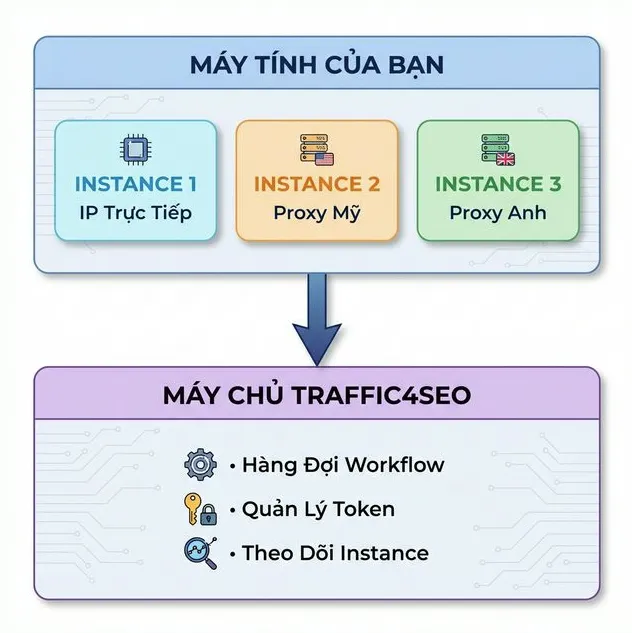
How it Works
Each instance:
- Starts the app.
- Clicks the "Start" button.
- Automatically connects to the server and receives workflows.
- Automatically sends results back to the server.
- Automatically receives tokens into the account.
Server tracking:
- Each instance has a unique UUID.
- Monitors status:
startorstop. - Tracks IP address and country code of each instance.
- Records the last seen timestamp.
Plan Limits
The number of instances you can run depends on your plan:
| Plan | Max Active Instances | Notes |
|---|---|---|
| Free | 3 | For testing and basic usage |
| Basic | 10 | For active users |
| Pro | 100 | Recommended for professional runners |
{info} Active vs Total:
- Total Instances: The number of instances you have created (unlimited).
- Active Instances: The number of instances currently with status='start' (limited by plan).
You can stop old instances and start new ones without losing data.
Checking Limits
In the Dashboard:
- Access the Dashboard.
- View "Active Instances": e.g.,
2 / 5. - Meaning: Running 2 instances out of a maximum of 5.
How to Set Up Multiple Instances
{warning} Note: All instances use the same account. The best approach is to log in and configure one instance first, then duplicate and run multiple instances.
Method 1: Multiple Application Windows (Recommended)
Run multiple instances on the same machine.
Windows
Step 1: Create Shortcuts
Suppose the app is installed at:
C:\Users\{User}\AppData\Local\Programs\Traffic4SEO\
Step 2: Create Shortcuts with Different Configs
Shortcut 1 (No Proxy):
Name: Traffic4SEO - Direct
Target: "C:\...\Traffic4SEO.exe" --name="Direct-Vietnam"
Shortcut 2 (US Proxy):
Name: Traffic4SEO - US Proxy
Target: "C:\...\Traffic4SEO.exe" --name="US-Proxy-01" --proxy-type=http --proxy-host=us-proxy.com --proxy-port=8080
Shortcut 3 (UK Proxy):
Name: Traffic4SEO - UK Proxy
Target: "C:\...\Traffic4SEO.exe" --name="UK-Proxy-01" --proxy-type=http --proxy-host=uk-proxy.com --proxy-port=8080
{success} Tip: Use the
--nameargument to give each instance a recognizable name instead of using the computer's hostname. This helps you distinguish instances in the Dashboard!
Step 3: Run All Instances
- Double-click Shortcut 1 → App window 1 opens.
- Double-click Shortcut 2 → App window 2 opens.
- Double-click Shortcut 3 → App window 3 opens.
Step 4: Click Start
In each app window:
- The app will log in automatically (if previously logged in).
- Click the Start Executor button in each window.
- Instances will start receiving and processing workflows independently.
Method 2: Multiple Computers
Run instances on different computers.
Scenario: You have 3 computers.
Machine 1 (Desktop - Home):
Instance: Desktop - Direct IP
Proxy: None
Device: Desktop
Machine 2 (Laptop - Office):
Instance: Laptop - Office IP
Proxy: None
Device: Desktop
Machine 3 (VPS - Cloud):
Instance: VPS - US Proxy
Proxy: US proxy
Device: DesktopSetup:
- Install the app on each machine.
- Log in with the same account.
- Each machine automatically creates its own instance.
- Configure and start.
{success} Maximum Flexibility: Combine both methods! For example: 2 instances on the desktop + 1 instance on the laptop = 3 instances total.
Instance Management
Naming Instances with --name
{info} New! You can set a custom name for each instance using the
--nameargument instead of using the computer's hostname.
Syntax:
Traffic4SEO.exe --name="Instance-Name"
# Or short form
Traffic4SEO.exe -n="Instance-Name"Benefits:
- ✅ Easily distinguish instances in the Dashboard.
- ✅ Meaningful names instead of cryptic hostnames (e.g.,
DESKTOP-ABC123). - ✅ Manage multiple instances on the same VPS easily.
- ✅ Avoid duplicate names when running multiple instances on the same machine.
Example:
# Instead of hostname "DESKTOP-ABC123"
Traffic4SEO.exe --name="US-Proxy-01" --proxy-host=us-proxy.com --proxy-port=8080

# Instance will appear as "US-Proxy-01" in the Dashboard
Recommended Naming Convention:
[Location]-[Proxy/Direct]-[Number]

Examples:
- "VN-Direct-01"        → Vietnam, no proxy, instance #1
- "US-Proxy-01"         → US proxy, instance #1
- "UK-Proxy-02"         → UK proxy, instance #2
- "DE-Residential-01"   → Germany residential proxy, instance #1
- "VPS-SG-Direct-01"    → Singapore VPS, no proxy, instance #1
View All Instances
In the Dashboard (Web):
- Log in at the Dashboard.
- Click "Instances" on the sidebar.
- View the list of all instances:
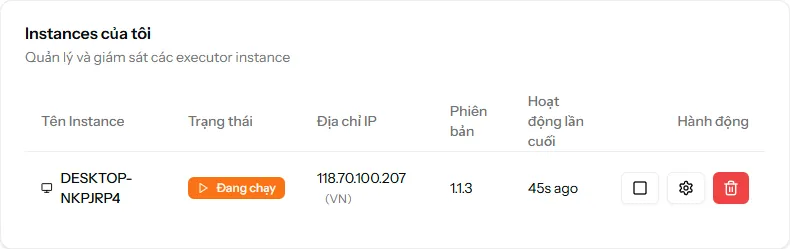
{success} Easy Identification: With custom names, you can easily know which instance is running which proxy and where!
Start/Stop Instance
In each app window:
- "Start Executor" button: Starts the instance (status →
start). - "Stop Executor" button: Stops the instance (status →
stop).
Instance States:
start: Running, counts towards limit, receives workflows.stop: Stopped, does not count towards limit, does not receive workflows.
Resource Requirements
RAM Requirements
Per Instance:
- Idle: ~300MB
- Running workflows: ~500MB - 1GB
- Peak: ~1.5GB (complex workflows)
Total RAM Needed:
| Instances | Min RAM | Recommended RAM |
|---|---|---|
| 1 | 4GB | 8GB |
| 2 | 8GB | 12GB |
| 3 | 12GB | 16GB |
| 5 | 16GB | 24GB |
{info} Formula:
Required RAM = 2GB (OS) + (Instances × 1.5GB)
CPU Requirements
Per Instance:
- Idle: ~1-2% CPU
- Running workflows: ~10-30% CPU
- Peak: ~50% CPU (heavy workflows)
Recommendations:
- 1-2 instances: Intel i3 or equivalent.
- 3-5 instances: Intel i5/i7 or AMD Ryzen 5/7.
- 5+ instances: Intel i7/i9 or AMD Ryzen 7/9.
Disk Space
Per Instance:
- App: ~150MB
- Cache: ~100-500MB
- Logs: ~10-50MB
Total: ~300MB - 700MB per instance.
Network Bandwidth
Per Instance:
- Average: ~1-2 Mbps
- Peak: ~5 Mbps
Recommendations:
- 1-2 instances: >= 5 Mbps.
- 3-5 instances: >= 10 Mbps.
- 5+ instances: >= 20 Mbps.
Use Cases & Strategies
Case 1: Geographic Diversity
Goal: Earn tokens from multiple countries.
Setup:
Instance 1: Direct IP (Vietnam) → VN Workflows
Instance 2: US Proxy → US Workflows
Instance 3: UK Proxy → UK Workflows
Instance 4: AU Proxy → AU WorkflowsBenefits:
- Access workflows from all markets.
- Maximize earning opportunities.
- Diversify income sources.
Expected Earnings: +200-300% compared to running a single instance.
Case 2: Resource Optimization
Goal: Optimize high-end PC resources when the app limits 30 tabs/IP.
The Problem:
- Your PC has plenty of resources (RAM, CPU) but they are not fully utilized.
- The app only allows a maximum of 30 tabs per IP.
Setup:
High-end PC (32GB RAM, 8 CPU cores):

Instance 1: --name="VN-Direct-01"
  → Direct IP (Vietnam)
  → 30 tabs = ~4GB RAM

Instance 2: --name="US-Datacenter-01"
  → US Proxy
  → 30 tabs = ~4GB RAM

Instance 3: --name="UK-Residential-01"
  → UK Proxy
  → 30 tabs = ~4GB RAM

Instance 4: --name="DE-Mobile-01"
  → German Proxy
  → 30 tabs = ~4GB RAM

Total: 4 instances × 30 tabs = 120 concurrent tabs
Launch Script:
# Windows PowerShell
Start-Process "Traffic4SEO.exe" -ArgumentList "--name=VN-Direct-01"

Start-Process "Traffic4SEO.exe" -ArgumentList `
  "--name=US-Datacenter-01 -ph=us-proxy.com -pp=8080 -pt=http"

Start-Process "Traffic4SEO.exe" -ArgumentList `
  "--name=UK-Residential-01 -ph=uk-proxy.com -pp=8080 -pt=http"

Start-Process "Traffic4SEO.exe" -ArgumentList `
"--name=DE-Mobile-01 -ph=de-proxy.com -pp=8080 -pt=http"Benefits:
- Fully utilize powerful PC resources.
- No need for virtual machines (consumes fewer resources).
- 4x performance increase on the same PC.
- Each IP/proxy runs independently, bypassing the 30-tab limit.
Expected Earnings: +300-400% compared to running a single instance.
{success} Recommendation: If your PC has ≥16GB RAM and a stable connection, this is the best way to optimize resources without a complex VM setup.
Automatic Restart Mechanism
{warning} Important: When running multiple instances 24/7, the app may encounter errors or hang. You need to set up an automatic restart mechanism to ensure continuous uptime.
Why is an automatic restart needed?
- App may close due to unforeseen errors.
- Network issues can cause the app to hang.
- Ensures instances run 24/7.
- Automatically recovers after a computer restart.
Automatic Restart on Windows
Using a Built-in Script
Traffic4SEO provides a powerful PowerShell script to manage restarts for multiple instances. This file is located in the app's installation directory:
C:\Users\{User}\AppData\Local\Programs\Traffic4SEO\multi-instance.ps1
Step 1: Prepare the Script
{warning} Important: The original
multi-instance.ps1file will be overwritten every time you update the app. ALWAYS create a copy before editing.
- Navigate to the installation directory:
C:\Users\{User}\AppData\Local\Programs\Traffic4SEO\ - Copy
multi-instance.ps1and rename it tomulti-instance-custom.ps1. - Right-click
multi-instance-custom.ps1> select Edit (or Open with Notepad).
Step 2: Configure Instances
Locate the $instances section in the file and edit the list of instances you want to run.
Example configuration for 3 instances:
$instances = @(
    # Instance 1: Direct Network (VN)
    @{
        Name = "VN-Direct-01"
        ProxyHost = ""
        ProxyPort = ""
        ProxyUsername = ""
        ProxyPassword = ""
        ProxyType = ""
    },

    # Instance 2: US HTTP Proxy
    @{
        Name = "US-Proxy-01"
        ProxyHost = "us-proxy.com"
        ProxyPort = "8080"
        ProxyUsername = "user123"
        ProxyPassword = "password123"
        ProxyType = "http"
    },

    # Instance 3: UK SOCKS5 Proxy
    @{
        Name = "UK-Socks-01"
        ProxyHost = "uk-socks.com"
        ProxyPort = "1080"
        ProxyUsername = "user456"
        ProxyPassword = "password456"
        ProxyType = "socks5"
    }
)
Step 3: Create a Task Scheduler Job
Instead of creating many separate tasks, you only need to create 1 single Task to run this script file.
- Open Task Scheduler.
- Click "Create Task".
- General Tab:
- Name:
Traffic4SEO Multi-Instance Manager - Run whether user is logged on or not: ✅
- Run with highest privileges: ✅
- Name:
- Triggers Tab:
- New > Daily > Recur every:
1 days. - Repeat task every:
12 hours(or 6 hours depending on needs). - Duration:
Indefinitely.
- New > Daily > Recur every:
- Actions Tab:
- Action:
Start a program. - Program/script:
powershell.exe. - Add arguments:
-ExecutionPolicy Bypass -File "C:\Users\{User}\AppData\Local\Programs\Traffic4SEO\multi-instance-custom.ps1"
- Action:
How the Script Works:
- 🔴 Shutdown: Automatically finds and closes all running Traffic4SEO windows.
- ⏳ Wait: Waits a few seconds to ensure everything has closed completely.
- 🟢 Restart: Sequentially starts each instance according to your list, with a delay between each launch to avoid CPU spikes.
Monitoring Automatic Restarts
Windows:
# Check Task Scheduler history
# Task Scheduler → View → Show All Running Tasks
# Task Scheduler → History tab (enable if disabled)
Command Line Argument Reference
To manage multiple instances more conveniently, here is the full list of command line arguments:
Instance Name
| Parameter | Short | Type | Description | Example |
|---|---|---|---|---|
--name |
-n |
string | Custom name for instance | --name="US-Proxy-01" |
Proxy Configuration
| Parameter | Short | Type | Description | Example |
|---|---|---|---|---|
--proxy |
-p |
string | Proxy Connection URI (Recommended) | --proxy="http://user:[email protected]:8080" |
--proxy-host |
-ph |
string | Proxy Hostname or IP (Legacy) | --proxy-host="proxy.com" |
--proxy-port |
-pp |
number | Proxy Port (Legacy) | --proxy-port=8080 |
--proxy-username |
-pu |
string | Proxy Username (Legacy) | --proxy-username="user" |
--proxy-password |
-pw |
string | Proxy Password (Legacy) | --proxy-password="pass" |
--proxy-type |
-pt |
string | Proxy Type (http/https/socks5) | --proxy-type=http |
Full Example
Traffic4SEO.exe \
  --name="US-Datacenter-01" \
  --proxy="http://myuser:[email protected]:8080"
Troubleshooting
Cannot Start New Instance (Limit Reached)
Error:
Plan limit reached (5/5 active instances)
Solution:
- Stop an old instance to free up a slot.
- Or upgrade your plan.
- Or delete unused instances.
Instance Conflict (Same Port)
Error:
Port 8080 already in use
Solution:
- The app automatically handles running multiple instances.
- If errors persist, restart all instances.
- Check if another application is using the same port.
High RAM Usage
Symptoms: Computer runs slowly, CPU spikes, RAM is full.
Solution:
- Reduce the number of running instances.
- Close other unnecessary applications.
- Upgrade RAM.
- Enable headless mode (to save RAM).
- Set
max concurrent workflows = 1.
Best Practices
1. Naming Convention
Use the --name argument to organize instances clearly:
[Location]-[Proxy/Direct]-[Number]
2. Resource Allocation
Allocate resources wisely:
Required RAM = 2GB (OS) + (Instances × 1.5GB)
Summary
- ✅ Multiple instances = More workflows = More tokens.
- ✅ Each instance operates independently.
- ✅ Plan limits apply to active instances.
- ✅ Use
--namefor better organization. - ✅ Combine geo-diversity + device emulation to maximize income.