Installing Traffic4SEO App
- Introduction
- System Requirements
- Download the Application
- Installation by OS
- First Run
- Updating the App
- Uninstalling
- Troubleshooting
Introduction
Traffic4SEO App is a desktop application that allows you to:
- Earn tokens by running others' workflows
- Run multiple instances with different proxies/IPs
- Monitor in real-time the execution process of workflows
- Automate the reception and execution of workflows
{success} 100% Free: The application is completely free. You only need a computer and an internet connection to start earning tokens!
System Requirements
Minimum Requirements
| Component | Requirement |
|---|---|
| Operating System | Windows 10/11 (64-bit) |
| RAM | 4GB (8GB recommended) |
| Free Space | 2GB |
| Internet Connection | Stable speed (>= 5 Mbps recommended) |
| CPU | Intel Core i3 or equivalent |
Recommended Requirements (For Multiple Instances)
| Component | Recommended |
|---|---|
| RAM | 16GB or more |
| CPU | Intel Core i5/i7 or AMD Ryzen 5/7 |
| Internet Connection | >= 10 Mbps |
| Free Space | 5GB or more |
{info} Note: Each running app instance consumes about 500MB - 1GB of RAM. If you want to run multiple instances, ensure the machine has enough RAM.
Download the Application
Download the App
- Visit the Traffic4SEO homepage
- Click the "Download" menu on the menu bar
- Download the Windows installer:
- Windows:
Traffic4SEO-Setup-{version}.exe(64-bit)
- Windows:
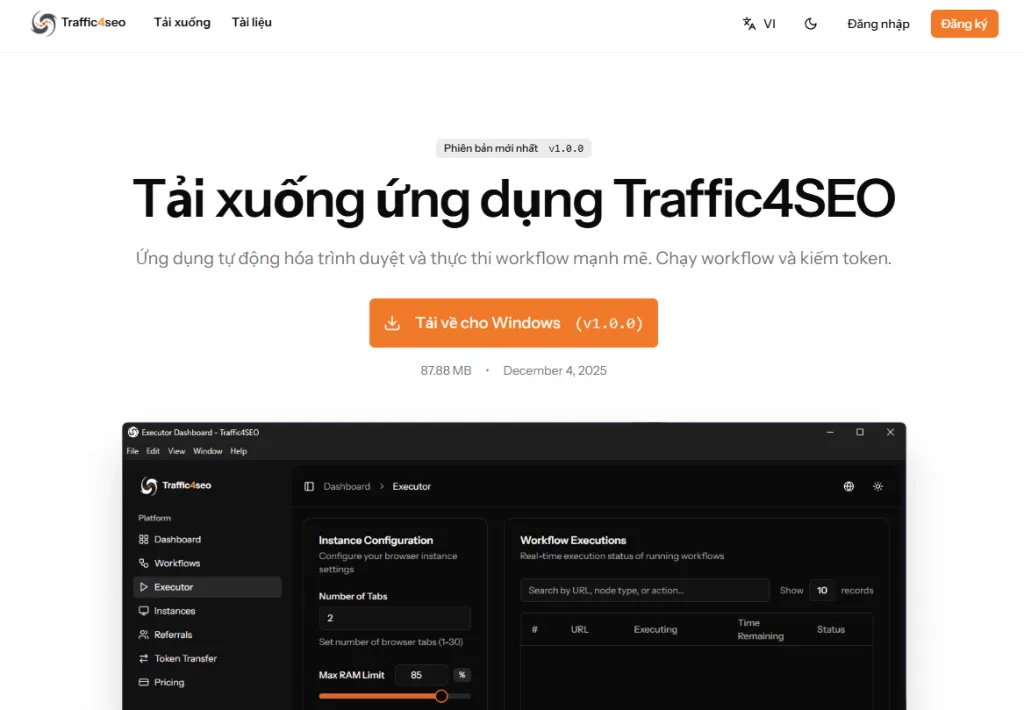
Direct link: /download
{info} OS: Currently, Traffic4SEO App only supports Windows 10/11 (64-bit). macOS and Linux support will be developed in the future.
Verify the Downloaded File
{warning} Security: Always download the app from the official website. Do not download from other sources to avoid malware.
Check the downloaded file:
- File name:
Traffic4SEO-Setup-{version}.exe(Windows) - Size: ~150-200MB
- Publisher: Traffic4SEO (digitally signed)
Troubleshooting Blocked Downloads
Microsoft Defender SmartScreen Blocks Download
When downloading the .exe file, the browser may display a warning "Make sure you trust Traffic4SEO-Setup-X.X.X.exe before you open it".
Reason: Microsoft Defender SmartScreen blocks the file because it has not yet been commonly downloaded.
Solution:
Step 1: In the browser's download menu, click the "..." menu next to the downloaded file.
Step 2: Choose "Keep".
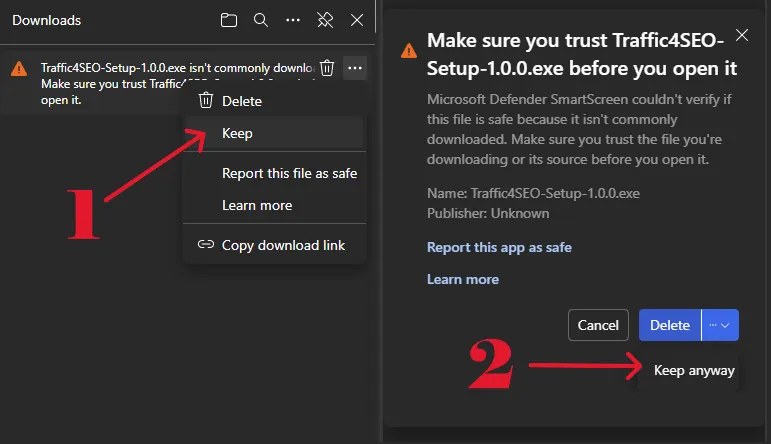
Step 3: In the SmartScreen warning window:
- Click the dropdown menu next to the "Delete" button.
- Choose "Keep anyway".
{success} Safety: This file is 100% safe. The warning appears because this is a new application and not many people have downloaded it yet. Once there are enough downloads, the warning will disappear automatically.
Chrome: "This file is dangerous"
Solution:
- Click the up arrow (^) next to the file in the download bar.
- Choose "Keep".
- Confirm "Keep anyway".
Edge: "Can't download safely"
Solution:
- Click the "..." menu next to the file.
- Choose "Keep".
- Choose "Show more".
- Click "Keep anyway".
Firefox: "This file may harm your computer"
Solution:
- Click the dropdown arrow next to the file.
- Choose "Allow download" or "Keep file".
Installation by OS
Windows
Step 1: Run the Installer
- Double-click the
Traffic4SEO-Setup-{version}.exefile. - If Windows SmartScreen warns you:
- Click "More info".
- Click "Run anyway".
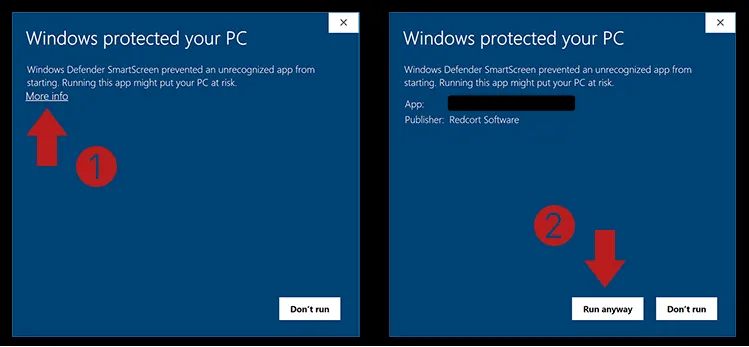
Step 2: Choose the Installation Folder
- The installer will open.
- Choose the installation folder (default:
C:\Users\{User}\AppData\Local\Programs\Traffic4SEO). - Click "Next".
Step 3: Complete Installation
- Click "Install".
- Wait for the installation process (30-60 seconds).
- Click "Finish".
- Desktop: Traffic4SEO icon on the screen.
- Start Menu:
Start > Traffic4SEO.
Command Line Installation (Optional)
# Silent installation
Traffic4SEO-Setup-1.0.0.exe /S

# Specify installation folder
Traffic4SEO-Setup-1.0.0.exe /S /D=C:\MyApps\Traffic4SEO
First Run
Step 1: Open the Application
- Double-click the Traffic4SEO icon on the desktop.
- Or:
Start Menu > Traffic4SEO.
Step 2: Login
- The app will open a login window.
- Enter your email and password.
- Click "Login".
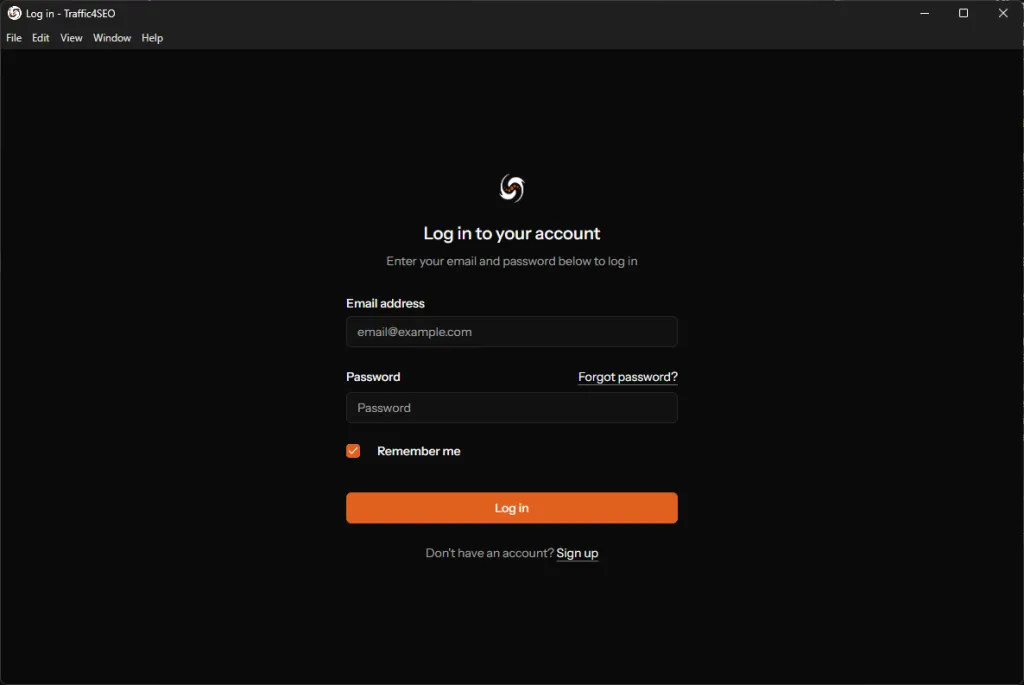
{info} Account: You must have a Traffic4SEO account first. If not, register at traffic4seo.com/register.
Step 3: Go to the Executor Page
After a successful login:
- In the left sidebar, click on "Executor".
- The app will display the Executor Dashboard page.
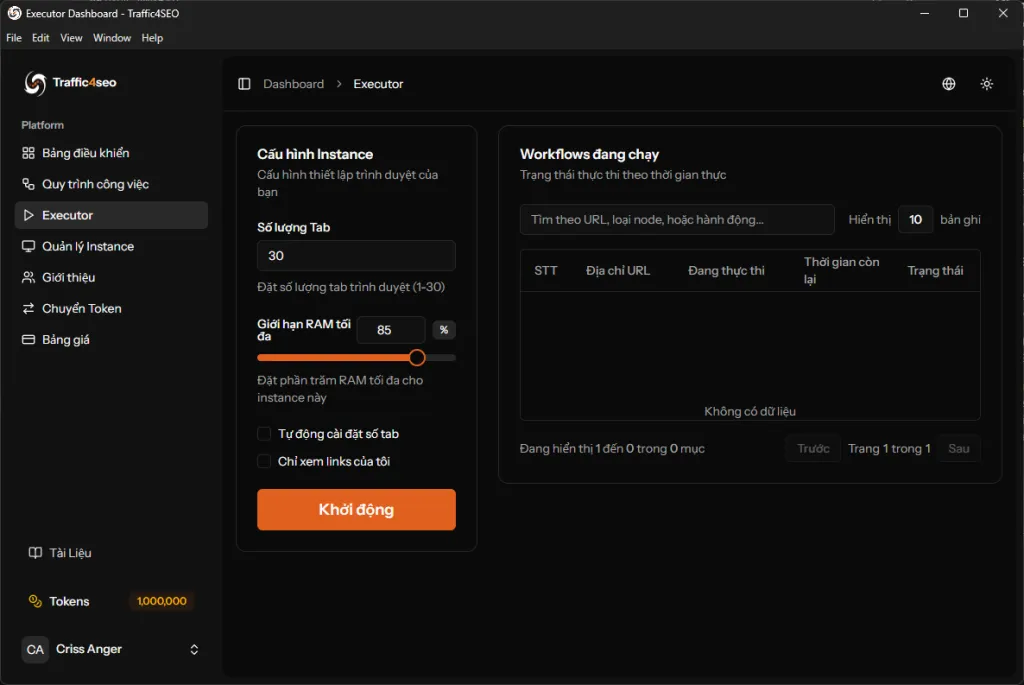
The Executor Dashboard page has 2 main parts:
1. Instance Configuration (Left side)
This is where you configure the browser that will run workflows:
| Setting | Description |
|---|---|
| Number of Tabs | Number of browser tabs running simultaneously (1-30) |
| Max RAM Limit | Maximum RAM percentage for this instance (%) |
| Auto-set Number of Tabs | Automatically adjust the number of tabs based on RAM |
| Only View My Links | Only run workflows from your own links |
{info} Recommendation: Start with 10-15 tabs and 85% RAM. Then adjust based on your computer's performance.
2. Running Workflows (Right side)
Displays the list of workflows currently being executed:
- No.: Sequence number
- URL: The URL being accessed
- Executing: Current action (e.g., "Clicking", "Waiting")
- Time Remaining: Time left to complete
- Status: Workflow status (Running, Completed, Failed)
{warning} Note: When you first log in, the workflow list will be empty with the message "No data". Workflows will appear after you click the "Start" button.
Step 4: Start Running Workflows
-
Configure instance (if needed):
- Adjust Number of Tabs (recommended: 10-30).
- Adjust Max RAM Limit (recommended: 85%).
-
Click the "Start" button (orange) at the bottom left.
-
The app will:
- ✅ Connect to the workflow queue on the server.
- ✅ Automatically receive workflows from the queue.
- ✅ Open browser tabs and execute workflows.
- ✅ Send results back to the server.
- ✅ Update the tokens you earn.
-
Monitor workflows in the "Running Workflows" table:
- View the URL being accessed.
- See the real-time execution status.
- See the remaining time.
When the executor is running:
- The "Running Workflows" table will display executing workflows.
- The number of workflows displayed corresponds to the number of tabs you configured.
- Tokens earned will be automatically updated in the left sidebar ("Tokens" section).
{success} Start earning tokens! Just let the machine run and the executor will automatically receive and execute workflows. You can monitor progress in real-time in the dashboard.
Updating the App
Automatic Updates
The app features full automatic updates:
- Check for newer versions: The app automatically checks for a newer version upon startup.
- Automatic download: When a newer version is available, the app will automatically download it in the background.
- Automatic installation: The app automatically installs the update and restarts.
- No manual action required: You don't need to do anything; everything happens automatically.
{success} No Data Loss: All your configurations, settings, and tokens are preserved after an update.
Check Version
In the App:
- Menu:
Help > About Traffic4SEO - View the version number:
v1.0.0
Uninstalling
Method 1: Control Panel
Start Menu > Control Panel > Programs > Uninstall a program.- Find "Traffic4SEO".
- Click "Uninstall".
- Follow the instructions.
Method 2: Settings
Start Menu > Settings > Apps.- Find "Traffic4SEO".
- Click "Uninstall".
Method 3: Uninstaller
- Go to the installation folder:
C:\Users\{User}\AppData\Local\Programs\Traffic4SEO. - Run
Uninstall Traffic4SEO.exe.
Complete Data Removal (Optional)
{danger} Warning: This command will delete ALL settings, logs, and cache. It cannot be recovered!
# Delete user data
Remove-Item -Recurse -Force "$env:APPDATA\traffic4seo-app"
Troubleshooting
Installation Issues
Windows: "App can't be installed"
Reason: Antivirus blocks the installer.
Solution:
- Temporarily disable antivirus.
- Install the app.
- Add the app to your antivirus whitelist.
- Re-enable antivirus.
Startup Issues
App doesn't open
Solution:
- Check Task Manager.
- If the app is running, kill the process: Task Manager > End Task.
- Re-open the app.
App crashes on startup
Solution:
- Clear cache:
%APPDATA%\traffic4seo-app\Cache. - Re-open the app.
App shows error page
Reason: Unable to connect to the server.
Solution:
- Check your internet connection.
- Check firewall settings.
- Try accessing https://traffic4seo.com.
- If the error persists, contact support.
Login Issues
"Invalid credentials"
Solution:
- Check email/password.
- Try logging in on the web: traffic4seo.com/login.
- If you forgot your password, reset it at: traffic4seo.com/password/reset.
"Too many login attempts"
Reason: Entered incorrect password multiple times.
Solution:
- Wait 15 minutes.
- Or reset your password.
Performance Issues
App runs slowly
Solution:
- Close other apps to free up RAM.
- Reduce the number of running instances.
- Clear cache:
- Menu:
Settings > Clear Cache.
- Menu:
High CPU usage
Reason: Executing a complex workflow.
Solution:
- Normal behavior when running workflows.
- If CPU usage is high when idle, restart the app.
Getting Log Files for Debugging
Log location:
%APPDATA%\traffic4seo-app\logs\main.logSend logs to support:
- Copy the log file.
- Send via email: [email protected].
- Or attach to a support ticket.
Next Steps
After successful installation, learn more:
More Support: